
General
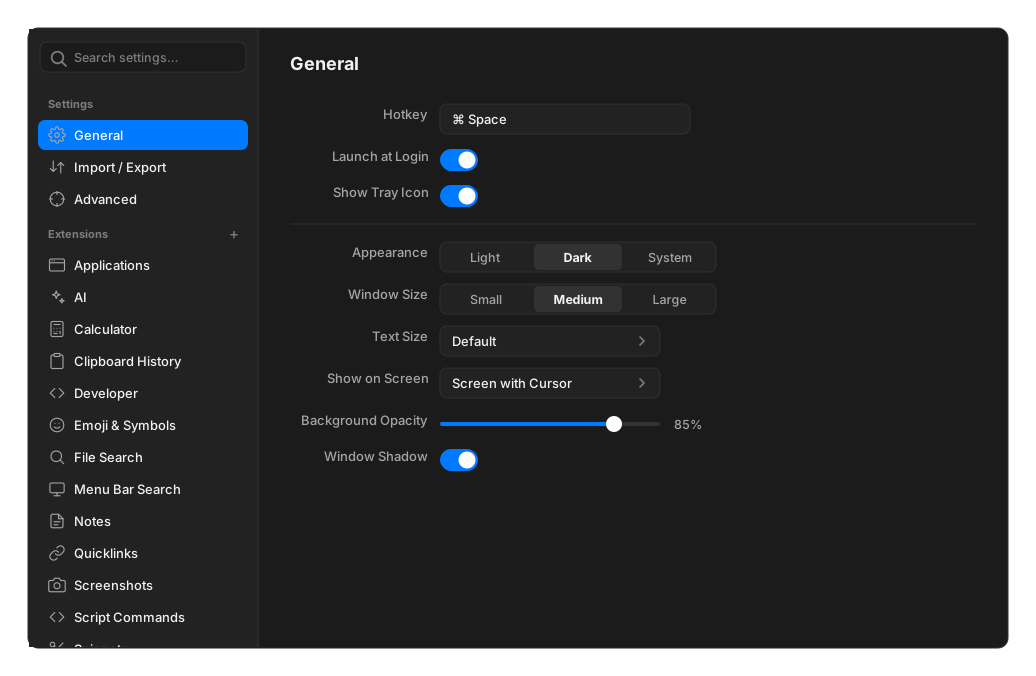
Open Settings with ⌘, from the palette, or from the tray icon.
| Setting | What it does |
|---|---|
| Hotkey | The global shortcut that shows and hides the palette. Click, then press the combination you want |
| Launch at Login | Start OpenRay when you log in |
| Show Tray Icon | Keep the monochrome bolt in the tray or menu bar |
| Appearance | Light, Dark, or System |
| Window Size | Small, Medium or Large palette |
| Text Size | Default, Large or Larger |
| Show on Screen | Screen with Cursor, or Primary Screen |
| Background Opacity | 30% to 100% translucency for the palette |
| Window Shadow | Draw a drop shadow behind the palette |
| Vim Style Navigation | Alt+J/K move through lists, Alt+H/L move across grids |
About the hotkey
Section titled “About the hotkey”A hotkey needs at least one modifier. If the combination is already taken by the palette or by another command, Settings says which one and refuses the change.
Some combinations cannot be registered by any application. Windows reserves most Win
combinations; a Wayland compositor may override what OpenRay asks for. If a hotkey appears to
do nothing, see your platform’s notes:
macOS, Windows,
Linux.
Related
Section titled “Related”- Extensions and commands — per-command aliases and hotkeys
- Advanced