
Core concepts
Root search
Section titled “Root search”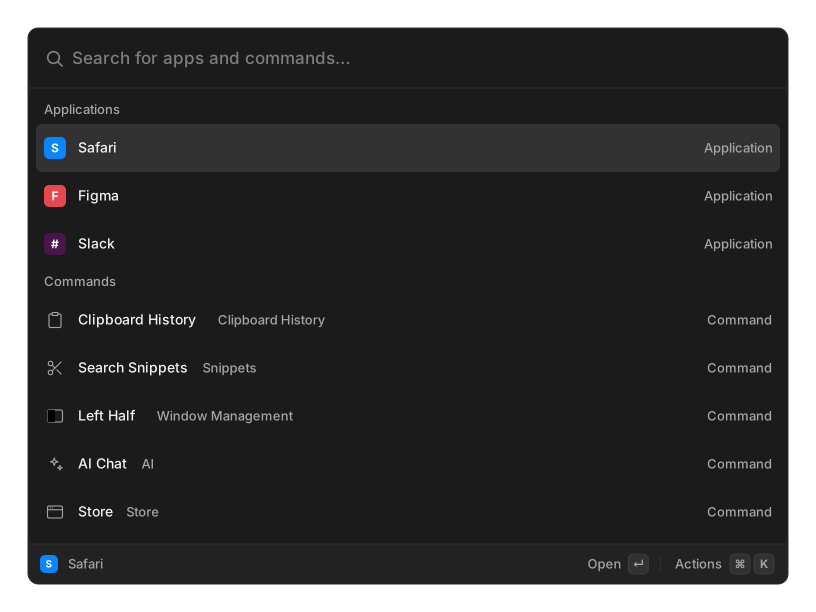
Press the hotkey and start typing. One list holds everything: your applications, every command from every extension, your snippets, your quicklinks, window presets, system commands, and anything you have installed from the Store.
With an empty query, you get Suggestions — everything, ordered by what you actually use. Start typing and it becomes Results.
How results are ordered
Section titled “How results are ordered”Matching is fuzzy, so clph finds Clipboard History. A multi-word query is scored by its
weakest word, which lets the distinctive word do the work: left half will not drag in
everything containing “left”.
Ordering combines the match quality with frecency — frequency and recency together. Each launch raises a command’s score, and that boost halves every four days you do not use it. So the things you reach for float to the top on their own, and something you used heavily last month quietly sinks again.
Two things always win: an alias you typed exactly, and a title that exactly equals your query.
If fuzzy matching feels too loose or too strict, change Root Search Sensitivity in Settings → Advanced.
Commands
Section titled “Commands”A command is one thing an extension can do. It comes in three shapes:
- View commands open a UI in the palette — a list, a grid, a form, a detail pane.
- No-view commands just run. A window preset, a system command, pasting a snippet.
- Root providers contribute rows straight into root search rather than owning a screen. Every one of your snippets, quicklinks and window presets is a root-provider row.
Root providers can also produce inline rows, recomputed on every keystroke and drawn
above the list. That is how typing 128 gb to mb shows a calculator card and typing a
foreign phrase shows a translation. Pressing ↵ on an inline row copies its value rather than
running a command.
Actions
Section titled “Actions”Every row has more than one thing you can do with it. ↵ runs the first, ⌘↵ the second, and ⌘K opens the full Actions panel where you can search them by name.
The footer always shows what ↵ will do, so you can see the primary action before you press it.
Arguments
Section titled “Arguments”Some commands ask for a value. Their fields appear inside the search bar, right after what you typed, so you never leave the one input. Tab moves between them and ↵ runs the command.
Aliases and hotkeys
Section titled “Aliases and hotkeys”An alias is a short nickname you assign to a command. Typing it in root search puts that command first, ahead of anything fuzzy matching could suggest. Aliases must be unique.
A per-command hotkey runs one specific command from anywhere, without opening the palette at all. Both are set per command in Settings → Extensions and commands.
Where your data lives
Section titled “Where your data lives”| macOS | Linux | Windows | |
|---|---|---|---|
| Settings | ~/Library/Application Support/openray |
~/.config/openray |
%APPDATA%\openray |
| Database | ~/Library/Application Support/com.openray.desktop |
~/.local/share/com.openray.desktop |
%APPDATA%\com.openray.desktop |
Settings are a plain settings.json. The database holds usage counts, aliases and hotkeys,
clipboard history, notes, snippets, and each extension’s own stored data.
- Keyboard shortcuts
- Features — what ships in the box