
AI
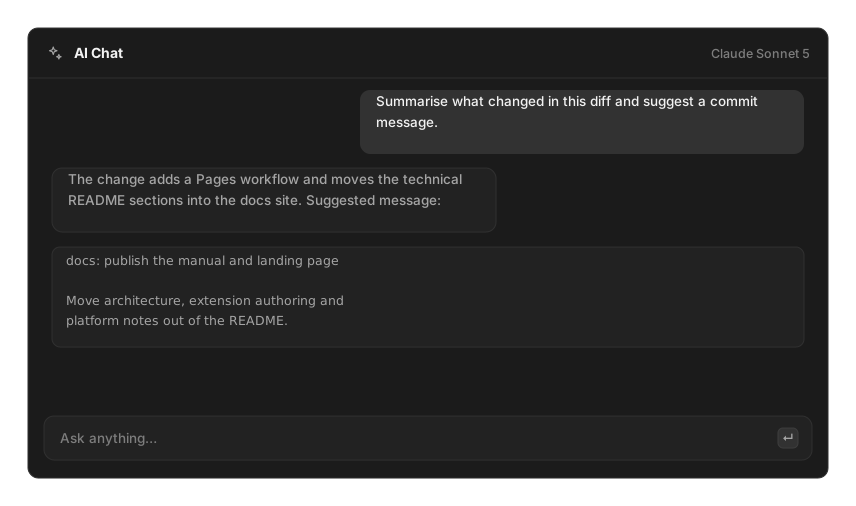
OpenRay talks to AI providers directly with your own key. There is no proxy and no account. Add a key with the AI Providers command.
Providers and models
Section titled “Providers and models”| Provider | Setup | Models |
|---|---|---|
| Anthropic | API key | Claude Fable 5, Claude Opus 5, Claude Sonnet 5, Claude Haiku 4.5 |
| OpenAI | API key | GPT-5.1, GPT-5.1 Mini |
| API key | Gemini 3 Pro, Gemini 3 Flash | |
| Ollama | base URL only, default http://localhost:11434/v1 |
Ollama (local) |
| CLI | the tool already installed and signed in | Claude Code, Codex, Antigravity |
The CLI options shell out to claude, codex or agy on your PATH, so they reuse whatever
sign-in those tools already have. They send the whole conversation as one prompt each turn
rather than resuming a session.
Keys are stored on this device, used directly to call the provider, and never included in an export.
AI Chat
Section titled “AI Chat”The AI Chat command opens a dedicated window where the search bar is the message box. ↵ sends, ⌘N starts a new chat, ⌘R regenerates the last answer. A dropdown switches between chats, and responses stream in as they arrive.
Chat also builds a small personalization memory — a summary it updates every few messages and carries into later chats. Show Memory and Clear Memory are in the actions panel.
Quick AI
Section titled “Quick AI”Type a question in root search and press Tab to send it straight to Quick AI. There is no on-screen prompt for this, so it is worth remembering. It uses your Quick AI Model if you set one, otherwise the default model.
Quick AI and AI Chat share one window. If chat is already open, Quick AI focuses it rather than opening a second one.
AI Commands
Section titled “AI Commands”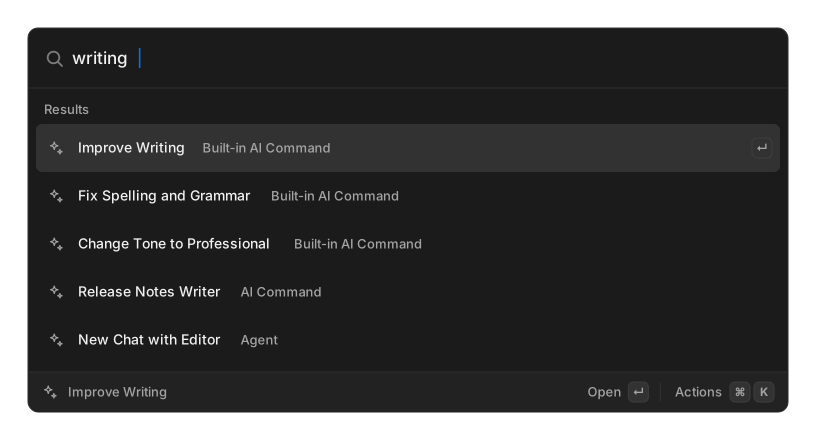
An AI Command is a saved prompt. Eight ship built in: Improve Writing, Fix Spelling and Grammar, Explain in Simple Terms, Change Tone to Professional, Change Tone to Friendly, Find Bugs in Code, Summarize Webpage, and Ask About Webpage.
Prompts can use {selection}, {clipboard}, {argument} and {webpage}. {selection} falls
back to the clipboard when nothing is selected. Set a command’s output mode to replace and
its answer is pasted straight back into the app you came from.
Each one gets its own row in root search. Create your own with Create AI Command, browse them with Search AI Commands.
A command runs as a single turn: no history, no tools.
Agents
Section titled “Agents”An agent is a name plus standing instructions. Creating one adds a New Chat with Name row to root search, which opens a chat carrying those instructions. Agents are not run on their own.
Skills
Section titled “Skills”A skill is a SKILL.md file on disk. OpenRay scans the directories listed under Settings →
AI → Skills, one level deep. Defaults are ~/.claude/skills and ~/.config/openray/skills.
Every discovered skill is available to chat.
MCP servers
Section titled “MCP servers”Manage MCP Servers connects tool servers to AI Chat over stdio or HTTP. Once a server is enabled, its tools are offered to the model.
Two things to know:
- Tools only work with Anthropic models. Other providers skip MCP entirely.
- A tool call is refused unless you have turned on Always Allow Tool Calls for that server. There is no per-call approval prompt, so enabling it is the decision.
Tool loops are capped at eight rounds per answer.
Settings
Section titled “Settings”| Setting | Default |
|---|---|
| Default Model | Claude Sonnet 5 |
| Quick AI Model | follow the default |
| Personalization — Profile | empty |
| Skills directories | ~/.claude/skills, ~/.config/openray/skills |
Providers, AI Commands, Agents and MCP Servers are all managed from root search rather than this pane.
Known gaps
Section titled “Known gaps”- The Creativity field on an AI Command is stored but has no effect yet.
- MCP OAuth exists in the code but has no UI and has never been tested against a live server.
- There is no editing UI for an existing AI Command or agent, and no way to promote a Quick AI exchange into a full chat.